Install USB driver
Starting with Windows 10, the USB interface is recognized by the operating system and the USB driver is installed automatically.
Two new entries are visible in Device Manager:
- USB driver entry:
- Universal Serial Bus controllers > USB Serial Converter
- Entry for the virtual COM port:
- Ports (COM & LPT) > USB Serial Port (COMx)
The ZETA USB interface is ready for use.
Enable virtual COM port
The virtual COM port is not enabled by default for the following ZETA interfaces:
- Optical Interface USB-OPT-2
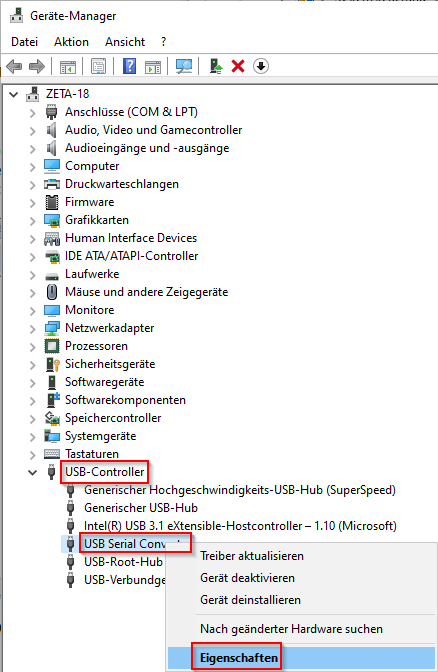
- To use this interface on a virtual COM port, double-click Universal Serial Bus controllers in Device Manager. Right-click on the corresponding USB Serial Converter and select Properties.
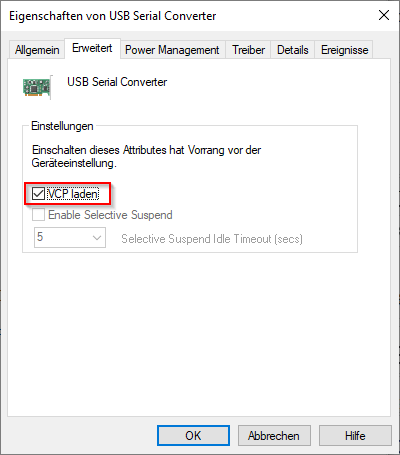
- Under Advanced, select the Load VCP checkbox and confirm with OK.
- Briefly remove the interface from the USB port and reconnect it.
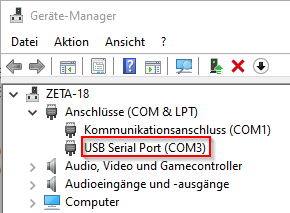
- A virtual COM port is automatically added and displayed in Device Manager under Ports (COM & LPT). In this example, USB Serial Port (COM3).
- Close the Device Manager. The setting will be permanently saved on the PC.
Change virtual COM port number
- Close all programs that access the COM port.
- The COM port number of the USB converter can be changed in the Windows Control Panel under Device Manager > Ports (COM & LPT) > Double-click on USB Serial Port (COMx) > Port Setting > Advanced
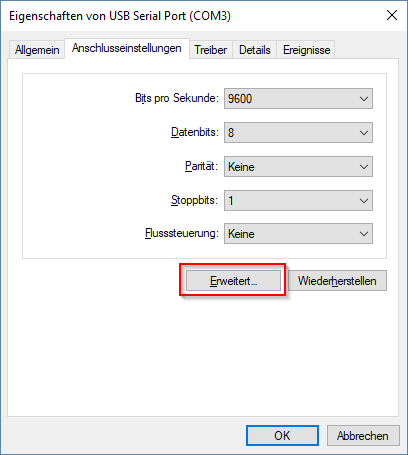
- Now select the desired COM Port Number.
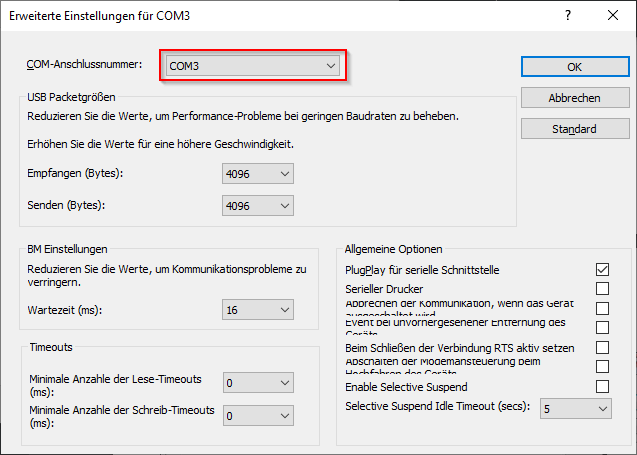
- OK (closes Advanced settings for COMx)
- OK (closes USB Serial Port Properties)
- Close the Device Manager.
- The new COM port is available.
- Your settings will be saved on your computer.